Tenants
Check the tenants of your user or another user, according to the IAM groups they belong to. The tab is read-only: tenants have no roles to attach from here.
Check your tenants
- In the side menu, open AuthN › Groups and choose the Tenants tab.
- The Tenants of: table shows one group per tenant.
- Expand a row with › to see the group’s ID, name, email, other aliases and direct members.
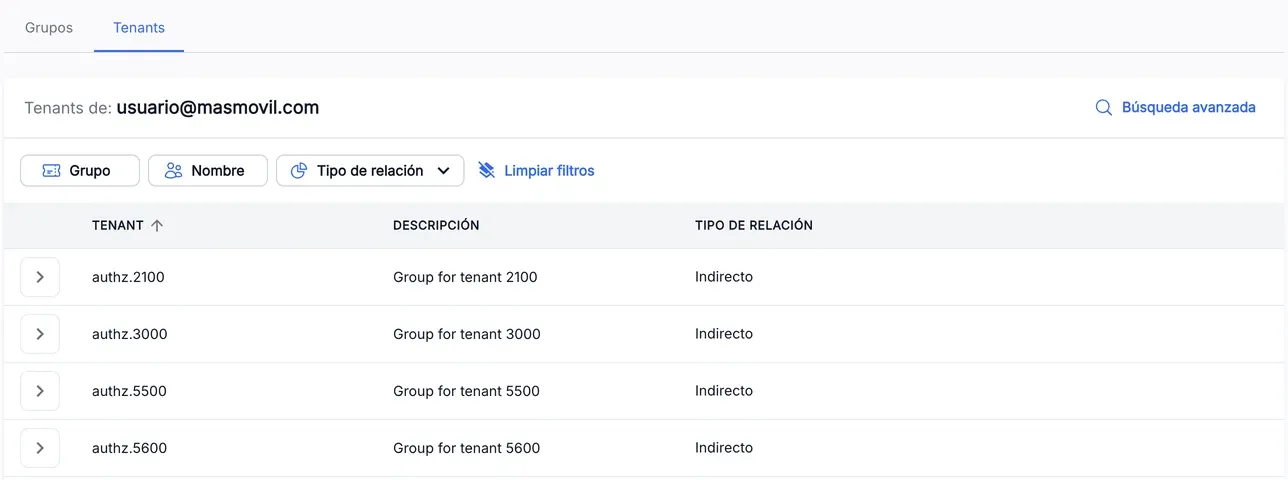
The Group, Name and Relation type filters work as in Groups.
The screenshots show the Admin interface in Spanish.
Search for another user’s tenants
- Press Advanced search.
- Choose BY USER or BY IAM GROUP, type the email or the name and press Search.
- To go back to your list, press Back to my tenants.
The search works as in Groups.
When something is not as expected
| You see | What it means and what to do |
|---|---|
| No Advanced search | You lack the admin.authn_groups.search permission. |
| ”Email format not valid” | The email is incomplete or misspelt. Check it and press Search again. |
| ”No results found” | You have not searched yet, or no group matches. Type another term and press Search. |
| A tenant you expected is missing | The user does not belong to that tenant’s group. Ask your manager for access. |
Reference
| Column | What it is |
|---|---|
| TENANT | Name of the IAM group that gives access to the tenant. |
| DESCRIPTION | Description of the group, or - if it has none. |
| RELATION TYPE | Direct, Indirect or Direct and indirect. |