Download documents
Download as a .zip the documents of the identification processes of a list of customers.
Download the documents of many identification processes at once. You upload a CSV with the customer and the process of each document, and Admin downloads them into one or more .zip files.
Open Download documents in Admin →
Prepare the CSV
The file needs a header and one row per document, with two columns:
| Column | What it is |
|---|---|
customer_id | Identifier of the customer. |
process_id | Identifier of the customer’s identification process. |
- The column names must be exactly those. There can be more columns: they are ignored.
- The separator can be a comma (
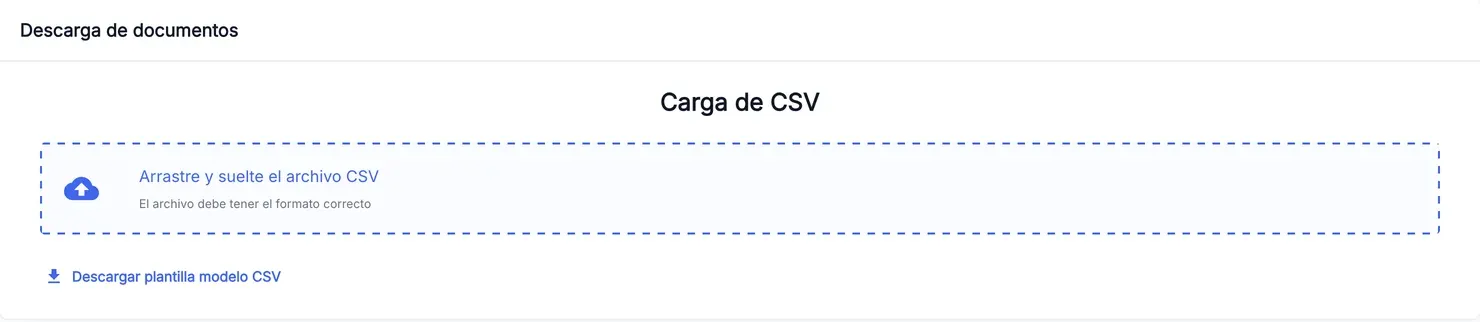
,) or a semicolon (;). - Download CSV template downloads a sample file with the header.
Load the CSV
- Drag the file onto CSV load, or click the area and pick it.
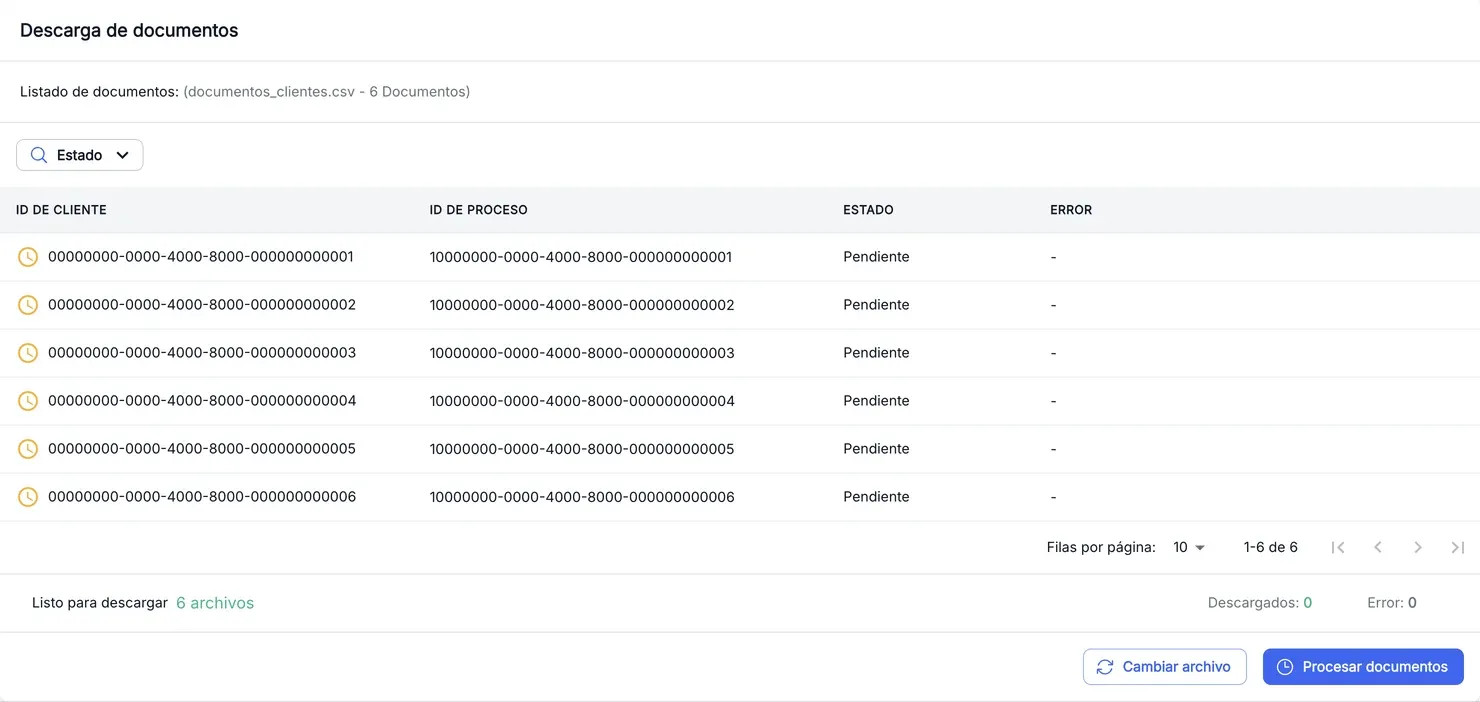
- If the file is valid, the Documents list appears with one row per document, all of them Pending.
To use another file, press Change file.
Download the documents
- Press Process documents.
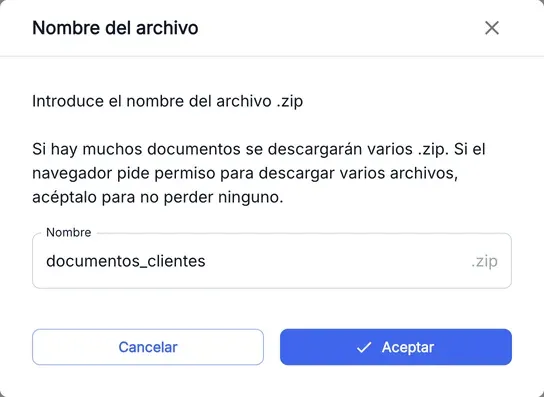
- Enter the Name of the
.zipfile and press Accept. - If the browser asks for permission to download multiple files, allow it.
- Wait for it to finish. The footer shows the progress (Processing), the documents Downloaded and those with an Error. Once 10 documents are processed, the estimated time appears too.
- When it ends, the browser saves the
.zip. Press Finish to go back to the CSV load.
The screenshots show the Admin interface in Spanish.
With many documents, they are saved in several files: <name>_chunk_1.zip, <name>_chunk_2.zip… Each one takes up to 400 MB in Chrome and 300 MB in other browsers, and is saved as soon as it fills up, without waiting for the end.
Pause or finish early
- Press Pause. Document download paused opens.
- Choose:
- Cancel to stay paused; then Resume continues where you left off;
- Download and finish to save what has been downloaded and a report of what failed or is still pending.
If 20 documents in a row fail, the download pauses on its own and High number of consecutive errors appears. Continue with the download resumes it; Finish saves what has been downloaded and the report.
The errors and pending report
If some document failed or was left unprocessed, a CSV with those rows of the original file is saved next to the .zip:
| File | Contains |
|---|---|
<name>_errors.csv | The documents that failed. |
<name>_pending.csv | The ones that were never processed. |
<name>_errors_and_pending.csv | Both cases. |
When something is not as expected
| You see | What it means and what to do |
|---|---|
| ”The CSV file does not contain any rows” | The file only has the header, or is empty. Add one row per document. |
| ”The CSV file must use commas (,) or semicolons (;) as a separator” | The file uses another separator, such as tabs. Save it again as a CSV with commas or semicolons. |
| ”The CSV file does not contain the columns process_id or customer_id” | One of the two columns is missing or named differently. Use the CSV template. |
| ”High number of consecutive errors” | Many documents in a row failed. The usual cause is that the selected tenant is not the one of the customers in the CSV. |
| ”Document download failed: …” or “No document URL found in response” in Error | The document of that process could not be retrieved. Check that the customer and the process are correct and belong to the selected tenant. |
| ”Downloaded document is empty” in Error | The document of the process is empty. It cannot be downloaded from here. |
Only one .zip was saved when you expected several | The browser blocked multiple downloads. Allow them for this site and run the download again. |
Reference
| Status | What it means |
|---|---|
| Pending | Not processed yet. |
| Processing | Being downloaded. |
| Downloaded | It is in the .zip. |
| Error | It could not be downloaded. The Error column gives the reason. |
The Status filter shows only the documents in one status.