Definitions
Check, create and edit the consent definitions of a tenant and review their version history.
Manage the consent definitions of the selected tenant: the type, the expiry and the texts of each consent in each language. Here you check them, create new definitions, edit their texts and review how they have changed.
Find a definition
- Open Definitions. The list shows one row per definition with its ID, TYPE, LANGUAGE and CREATION DATE.
- Filter by ID by typing the full identifier, or by type by choosing a value in All types. Clear filters removes both.
- Expand a row with › to see the Text, Short text and Description of the first language, the Duration and the User who created it.
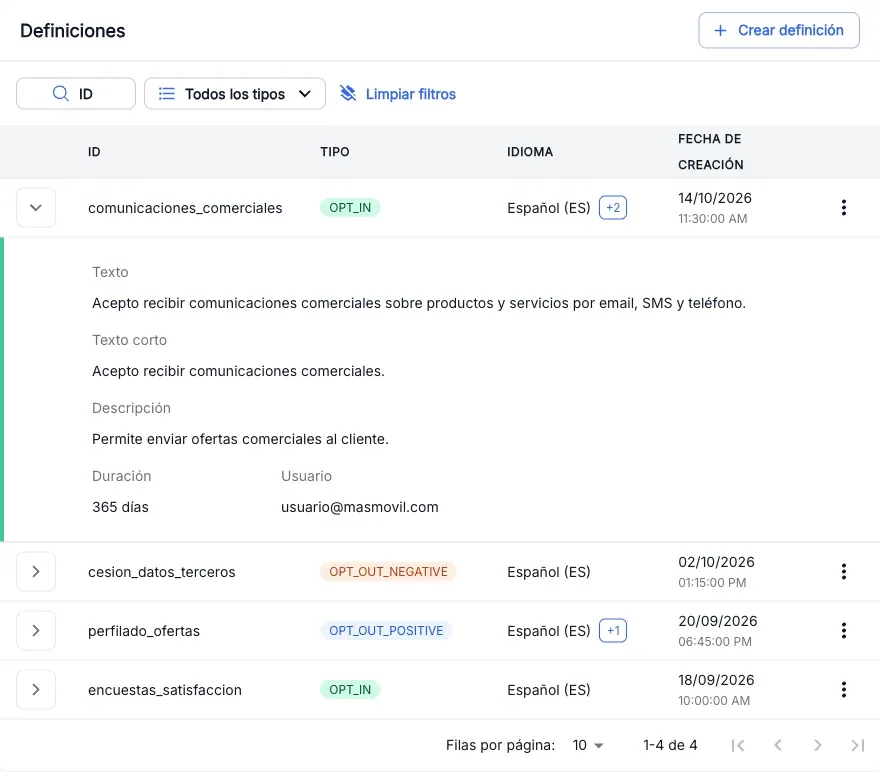
In the LANGUAGE column, +N tells how many more languages the definition has; click it to see them.
View the detail of a definition
- In the row of the definition, open the ⋮ menu and click View detail.
- General data shows the Type, the Languages, the Duration, the Creation date and the User.
- Below there is one card per language. Expand it to see its Text, Short text and Description.
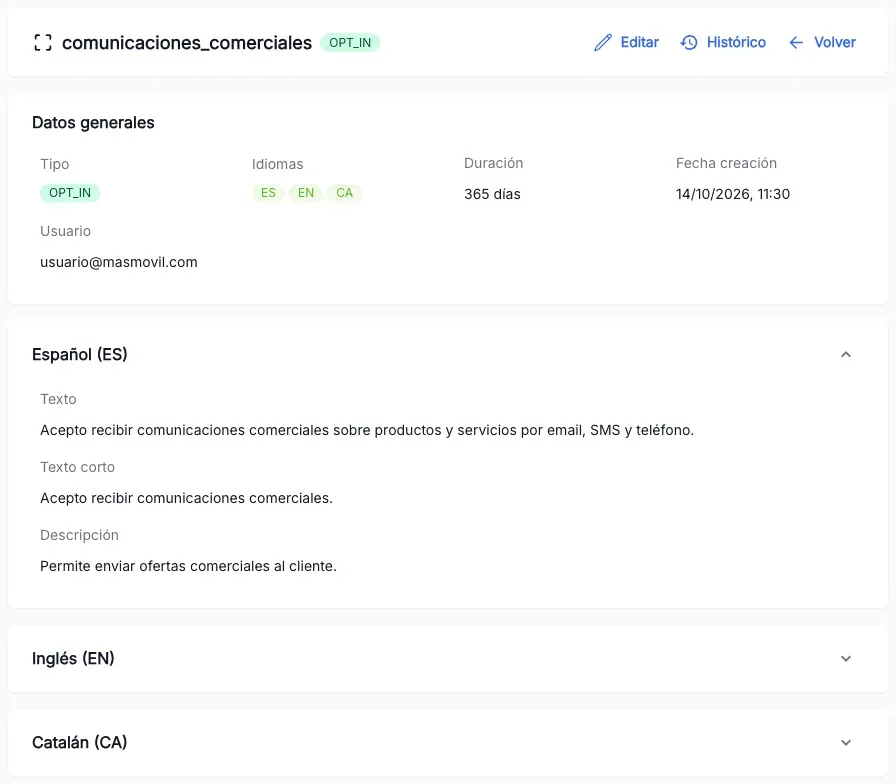
From the detail, Edit opens the edit screen, History the version history and Return the list.
Create a definition
- Click Create definition.
- In Type and configuration, choose the Type.
- Set Expires on with the slider or type the days, from 1 to 365. The default is 30.
- Type the Identifier: letters and digits separated by underscores, up to 50 characters, for example
newsletter_mensual. - Click Add language, choose the language in Select language and click Add language. A card appears for that language.
- In the card, fill in Text, Short text and Description. All three are required.
- Repeat steps 5 and 6 for each language. While a language has a missing field, its card shows a warning and “Language … is incomplete” appears below.
- Click Create definition. The button turns on when everything is complete. You see “Definition created” and go back to the list.
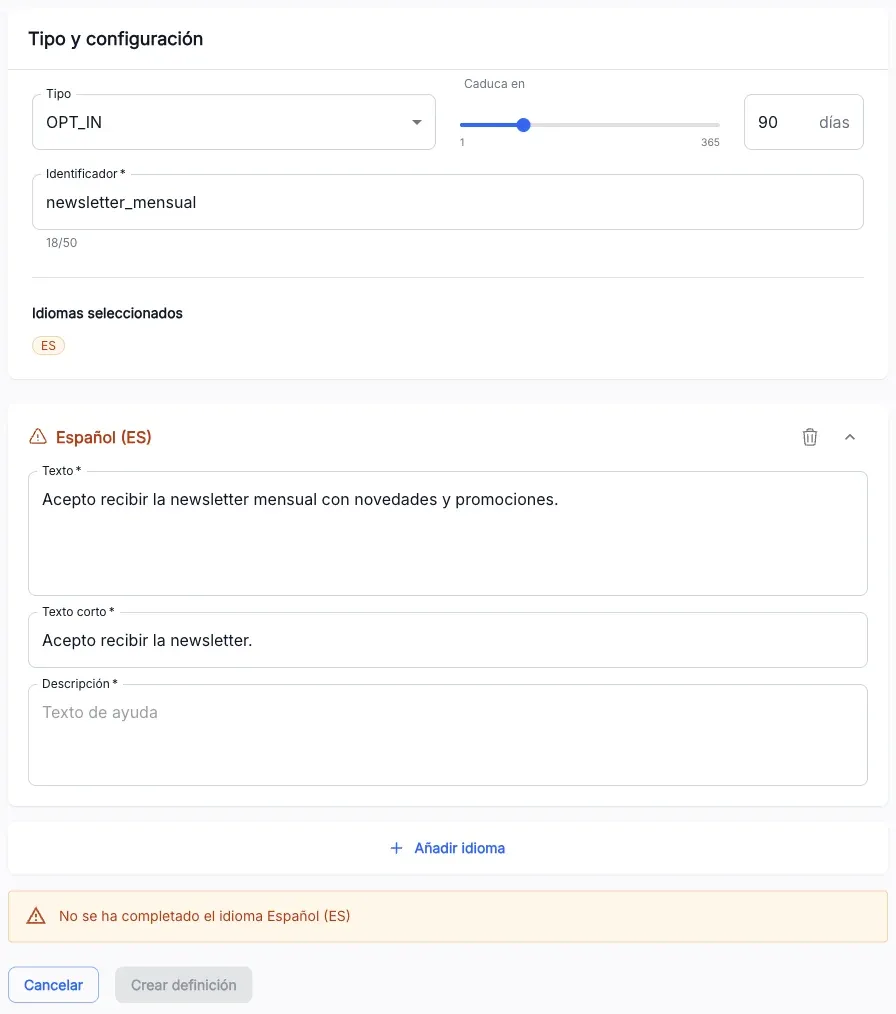
The type, the expiry and the identifier cannot be changed after the definition is created. To remove a language before creating it, click the trash icon on its card.
Edit the texts of a definition
- In the row of the definition, open the ⋮ menu and click Edit. You can also click Edit in the detail.
- Edit definition shows the type, the expiry and the identifier locked. Change the Text, Short text or Description of the languages you need.
- To add a language, click Add language and fill in its card as when creating.
- Click Finish editing. The button turns on when there is a change. You see “Definition updated” and go back to the list.
A language that was already saved cannot be removed; the trash icon only removes the languages you add in this edit.
Check the version history
- In the row of the definition, open the ⋮ menu and click History. You can also click History in the detail.
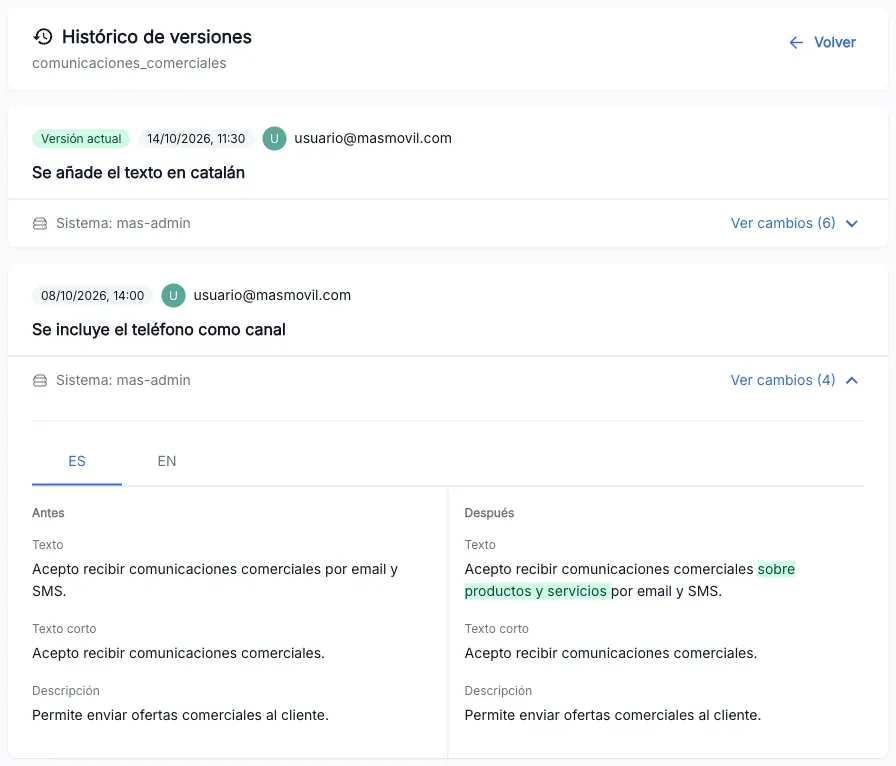
- Version history shows one card per version, newest first. The newest one carries the Current version tag. Each card shows the date, the user, the description of the change and the System it was made from.
- Click View changes on a version to compare it with the previous one. Choose the language in the tabs: Before shows the texts of the previous version and After those of this one, with the added text highlighted.
The screenshots show the Admin interface in Spanish.
When something is not as expected
| You see | What it means and what to do |
|---|---|
| ”No definitions found” | The tenant has no definitions or none matches the filters. Check the tenant in the header, and keep in mind that the ID filter needs the full identifier. |
| You do not see the Create definition button or Edit in the ⋮ menu | Your user can only view. Creating and editing need write permission for this section. |
| ”Identifier must use underscore-separated content” | The identifier only accepts unaccented letters and digits, separated by one underscore. It cannot start or end with an underscore or have two in a row. |
| ”Duration must be between 1 and 365 days” | Type a whole number of days from 1 to 365. |
| Add language is disabled | You have added every available language. Hovering shows “All available languages have been added”. |
| Create definition or Finish editing stays disabled | Something is missing: check the “Language … is incomplete” warnings. When editing, the button only turns on after you change a text or add a language. |
| ”Definition could not be created” or “Definition could not be updated” | The service rejected the request. The message below explains why; fix it and try again. |
| ”Definition not found” | The link points to a definition that does not exist in the selected tenant. Check the tenant in the header or go back to the list. |
Reference
List columns
| Column | What it is |
|---|---|
| ID | Identifier of the definition, for example comunicaciones_comerciales. |
| TYPE | Consent type. |
| LANGUAGE | Languages with text. +N means there are more. |
| CREATION DATE | Date and time the definition was created. |
Types
| Type | Colour |
|---|---|
OPT_IN | Green |
OPT_OUT_NEGATIVE | Orange |
OPT_OUT_POSITIVE | Blue |
Fields of each language
| Field | What it is |
|---|---|
| Text | The full legal text of the consent. |
| Short text | The legal text shown on small screens. |
| Description | A help text about the consent. |
Available languages: Spanish (ES), German (DE), Catalan (CA), Basque (EU), English (EN) and Galician (GL).