Types
Browse, create and edit communication types, and validate their templates across all tenants.
Browse the communication types, their arguments and their delivery window. From here you also see which templates each type has in each tenant, and validate them against their examples. Types are shared by all tenants.
Find a type
- Open Types. The Communication types table shows the code, the arguments, the delivery window and the update date of each type.
- Filter by Code, Description, Delivery window or Arguments by typing part of the text, or by Real-time required, Sending type and Sensitive by picking a value.
- Expand a row with › to see the Description, whether it is Real-time required, the Sending type and the Created date.
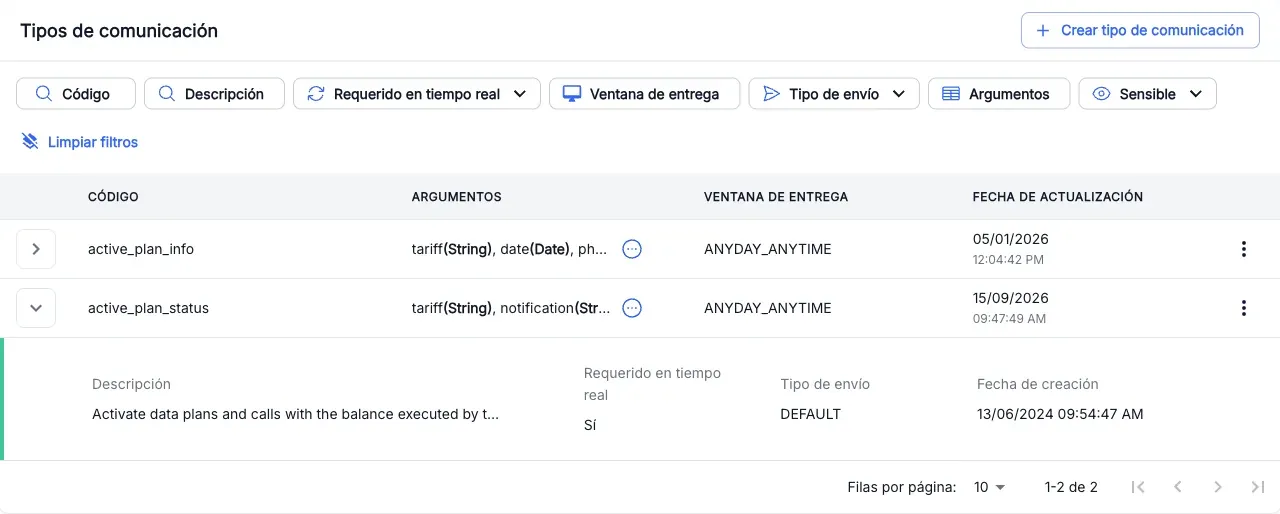
See the templates of a type
- In the row of the type, open the ⋮ menu and press Templates.
- A window opens with the type code and one row per tenant. The DETAIL column shows how many templates the type has in that tenant, or “No templates available for this tenant”.
- Expand a tenant with › to see its templates: channel, language, creation date and update date.
- Press Template on one of them to open it in a new tab.
Only the tenants enabled for you appear. Templates available hides the tenants with no templates of that type; Channel, Language, Creation date and Update date filter the templates.
Validate the templates of a type
Validation renders each template of the type with the arguments of its examples and checks that the result matches the expected output. It changes nothing.
- In the row of the type, open the ⋮ menu and press Validate templates.
- Wait for the list to load: one row per template of the type in each tenant enabled for you.
- Press Validate. The status of each template goes from Pending… to In progress and ends as Validated or Error.
- If you need to, press Pause validation and then Resume validation.
- When it ends, expand the templates with errors with › to see the Field, the Expected output and the Obtained output. Press Finish to close.
You can filter the list by Tenant, Channel, Language, Status and Detail.
Create a type
- Press Create communication type.
- In Type parameters, fill in the Code, the Delivery window and the Description, and pick Real-time required and Sending type.
- In Arguments, type the argument Name, pick its type and whether it is Sensitive, and press Add. Repeat for each argument. To remove one, press the X on its row.
- Press Create. You see “Creation completed” and the summary of the type. Press Done to go back to the list.
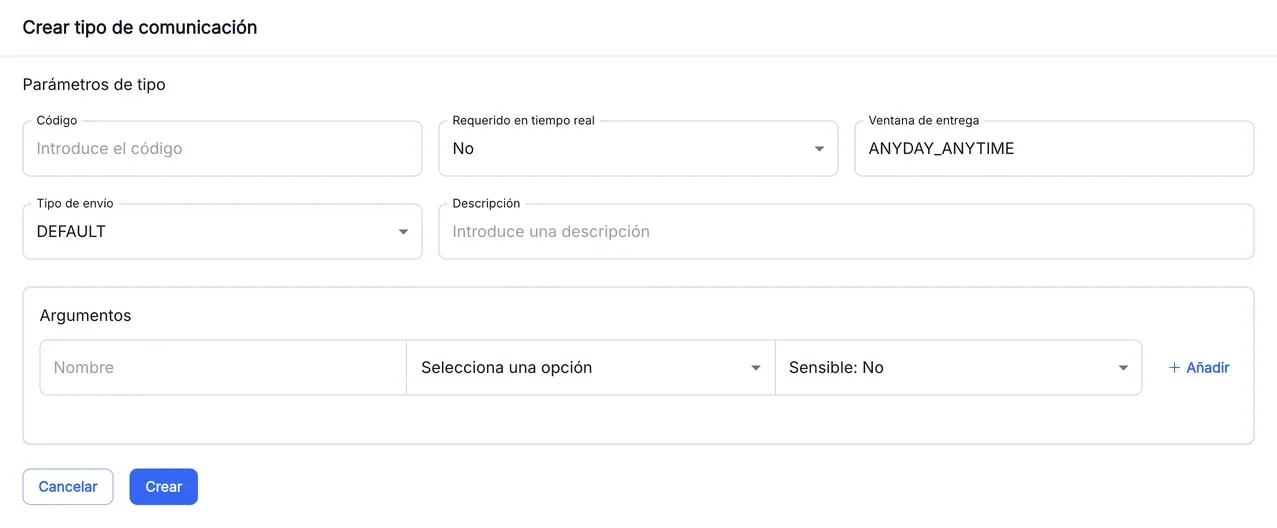
The code only accepts lowercase letters, digits and underscores, and cannot start or end with an underscore, for example tariff_change_notice.
Edit a type
- In the row of the type, open the ⋮ menu and press Edit communication type.
- Change the fields you need. The Code cannot be changed.
- Press Save. You see “Update completed”; press Done to go back to the list.
To change only the delivery window, use ⋮ > Edit delivery window: type the new value and press Accept. You see “Successfully edited delivery window”.
Delete a type
- In the row of the type, open the ⋮ menu and press Delete.
- In Delete communication type, check the code and press Accept. You see “Communication type deleted”.
The screenshots show the Admin interface in Spanish.
When something is not as expected
| You see | What it means and what to do |
|---|---|
| No Create communication type button and no edit options in the ⋮ menu | You do not have write permission for this section. |
| ”Invalid format code” | The code has capitals, spaces or other characters, or starts or ends with an underscore. Correct it. |
| ”An argument with this name already exists” | You already added an argument with that name. Use another one or remove the previous one. |
| ”An unknown error has occurred” with a Retry button | The service rejected the change. Read the message, press Retry to go back to the form and fix the value. |
| A template stays in Error with no rows when expanded | It could not be validated: the reason is in the DETAIL column. Try again later. |
Reference
Fields of a type
| Field | What it is |
|---|---|
| Code | Identifier of the type. Templates and examples use it. |
| Arguments | Values the communication receives, each with its type, for example tariff(String). |
| Delivery window | When the communication can be delivered, for example ANYDAY_ANYTIME or ANYDAY_8AM11PM. |
| Real-time required | Yes or No. |
| Sending type | DEFAULT, EXTERNAL, BATCH or PREPAID. |
| Description | What the type is for. |
Argument types: String, StringList, StringMap, Number, Link, LocaleRegion, Date, Boolean and Attachment. A Sensitive argument shows a crossed-out eye.