Mass load
Upload a device offer or devices file, validate it and execute the load.
Update the catalogue of the selected tenant from an Excel file: you upload it, the system validates it and, if the validation passes, you execute the load. The Loads table keeps the history.
How a load works
Every load goes through three phases:
| Phase | What happens | Statuses |
|---|---|---|
| Load | The file is uploaded. | Loaded |
| Validation | The file content is checked without changing the catalogue. | Validation in progress, Validated, Validation error |
| Execution | The changes are applied to the catalogue. | Execution in progress, Executed, Execution error |
While a load is being validated or executed, the Load in progress notice appears and you cannot start another one.
Look up the loads
The Loads table shows, for each load, the file and its ID, the type, who uploaded, validated and executed it (with the date of each phase) and the status. The clock icon of a phase shows when it finished. You can filter by User (the exact email of whoever uploaded it), Load type and State.
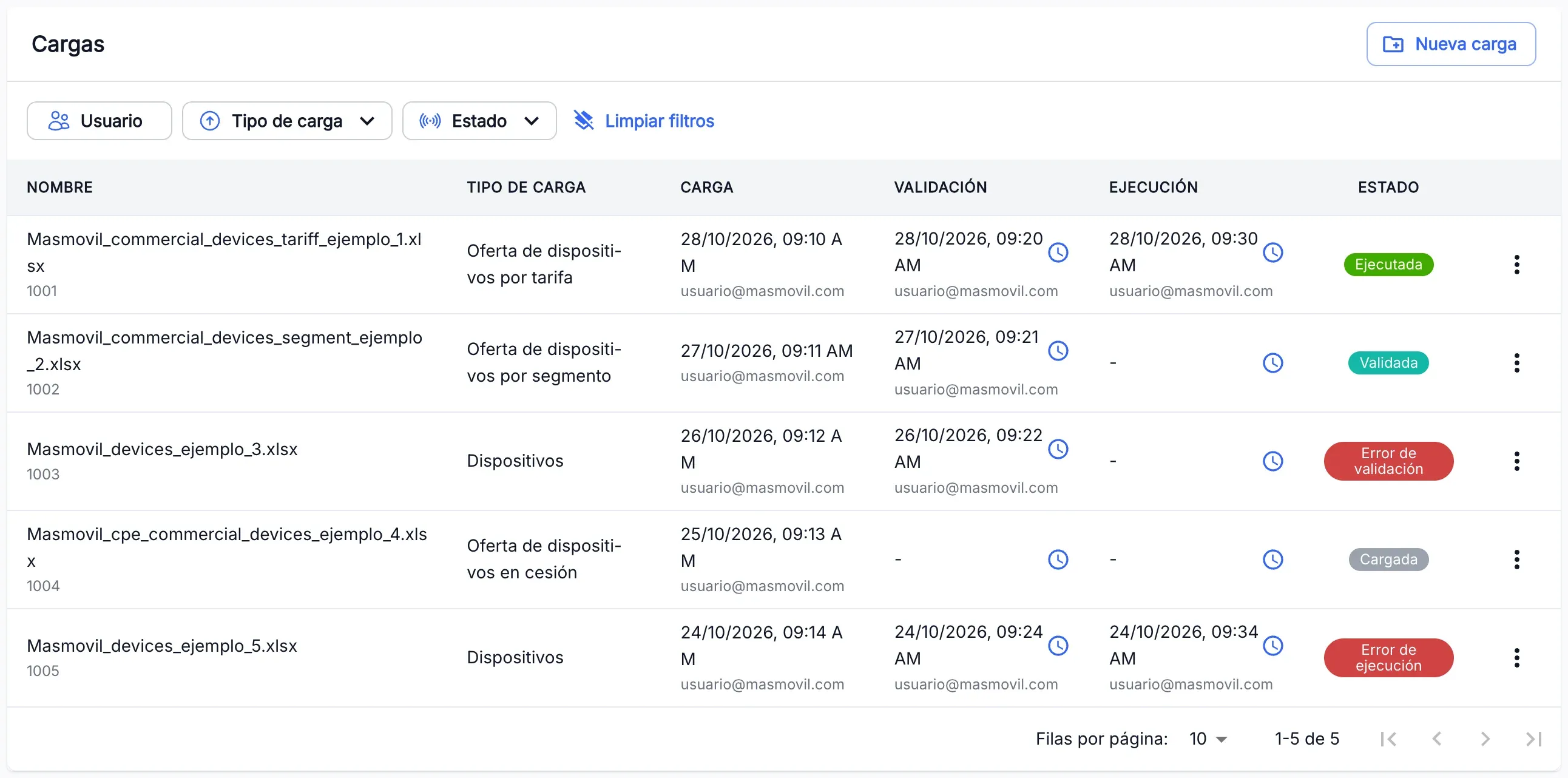
The menu of each load offers, depending on the case:
- Validate: only if the load is Loaded and you have write permission.
- Execute: only if the load is Validated and you have write permission.
- Download: downloads the original file. Available when the load is Loaded, Validated or Executed.
- View status: the detail the system returned, for example the validation errors. It also opens when you press the status.
Create a load
-
Press New load.
-
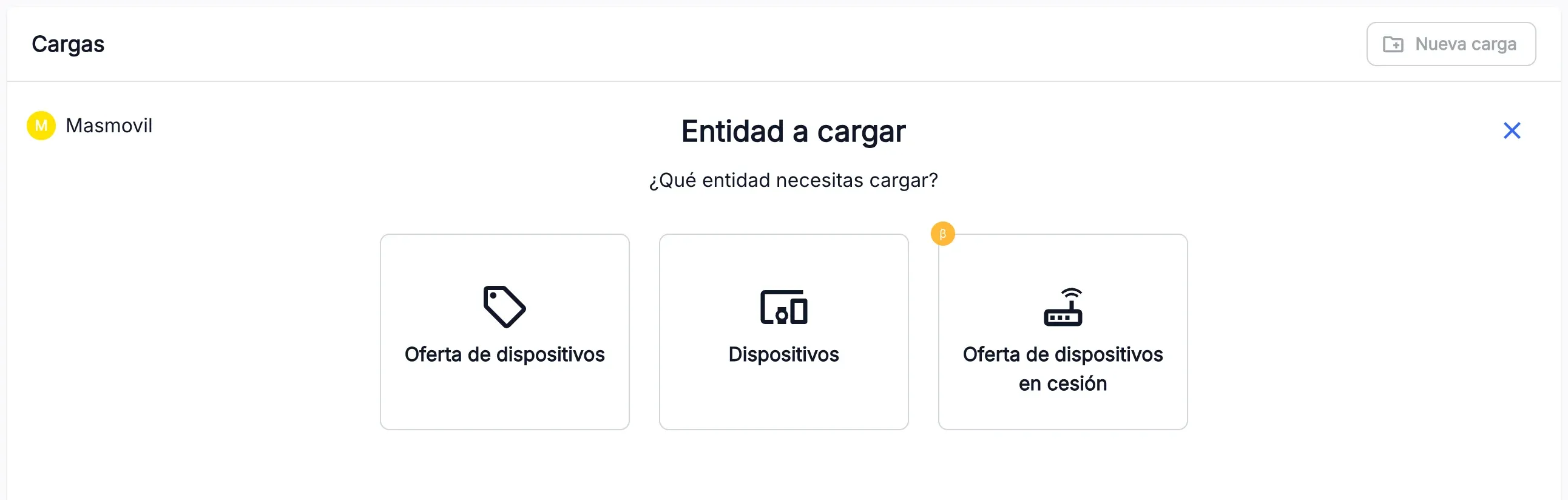
In Entity to load, pick what you are loading:
Entity What for Device offer The sale terms of the devices. Devices The device data. Offer of devices on loan The terms of the devices on loan. It is in beta. -
If you picked Device offer, pick the Load type: New registration (Tariff) or Renewal (Segment), and press Continue.
-
Drag or select the file. Only one XLS or XLSX file is accepted, up to 20 MB, whose name contains the tenant name. The upload starts at once.
-
When you see “The file has been uploaded successfully”, press:
- Validate to validate the file and decide later whether to execute the load;
- Validate and execute to have the load executed on its own as soon as the validation passes.
These guides do not cover the columns of each file. For that, ask the Catalogue team.
Validate and execute a load
- In the Validation step, wait for it to finish. If it passes, you see “Load validated successfully”.
- Press Execute and wait for “Load executed successfully”. Press Finish.
If the validation fails, Status detail shows the errors. Fix the file and create a new load.
If you do not want to execute the load now, close the file with ✕ and answer Yes to “Do you wish to postpone the execution process?”. The load stays Validated: you can execute it later from its menu, with Execute.
To validate or execute a load that is already in the table, use Validate or Execute in its menu. A panel opens with the load data and the same progress.
Catalogue deployments are handled separately, in Offer deployment.
The screenshots show the Admin interface in Spanish.
When something is not as expected
| You see | What it means and what to do |
|---|---|
| ”The file cannot be uploaded because the name does not match the selected tenant for the load” | The file name does not contain the header tenant name. Rename it or change tenant. |
| ”There was an error uploading the file” | The upload failed. The error the system returned appears below. Delete the file and upload it again. |
| Validation error | The file has errors. Press the status or View status to read them, fix the file and upload it again. |
| Execution error | The load could not be applied. Press the status to see the detail and ask the Catalogue team. |
| New load is disabled | A load is being validated or executed in the tenant. Wait for it to finish. |
| You do not see New load, Validate or Execute | You do not have write permission for this section. Ask whoever manages your access. |
| You do not see Mass load in the menu | You do not have read permission for this section. Ask whoever manages your access. |
Reference
Load types
| Type | When it appears |
|---|---|
| Device offer by tariff | Device offer with the New registration (Tariff) type. |
| Device offer by segment | Device offer with the Renewal (Segment) type. |
| Devices | Devices. |
| Offer of devices on loan | Offer of devices on loan. |
In the Load type filter, the first two appear as Tariff and Segment.